How To Use
How to Use
Ready in 5 minutes. Simple controls for a sound environment that's uniquely yours.
Customizing Your Sound
Here's how each setting in the app changes the sound. No expertise required — you can intuitively craft your perfect audio environment.
About the sound
The 40Hz pulse tone GLYMPHA produces is not a soft, musical sound. It's a mechanical "da-da-da-da..." that may feel slightly harsh to some ears. This is by design — not a bug. The app faithfully recreates a precise stimulus from brainwave research: 1-millisecond pulses repeated 40 times per second. Start at a low volume to get used to it.

Waveform & Volume
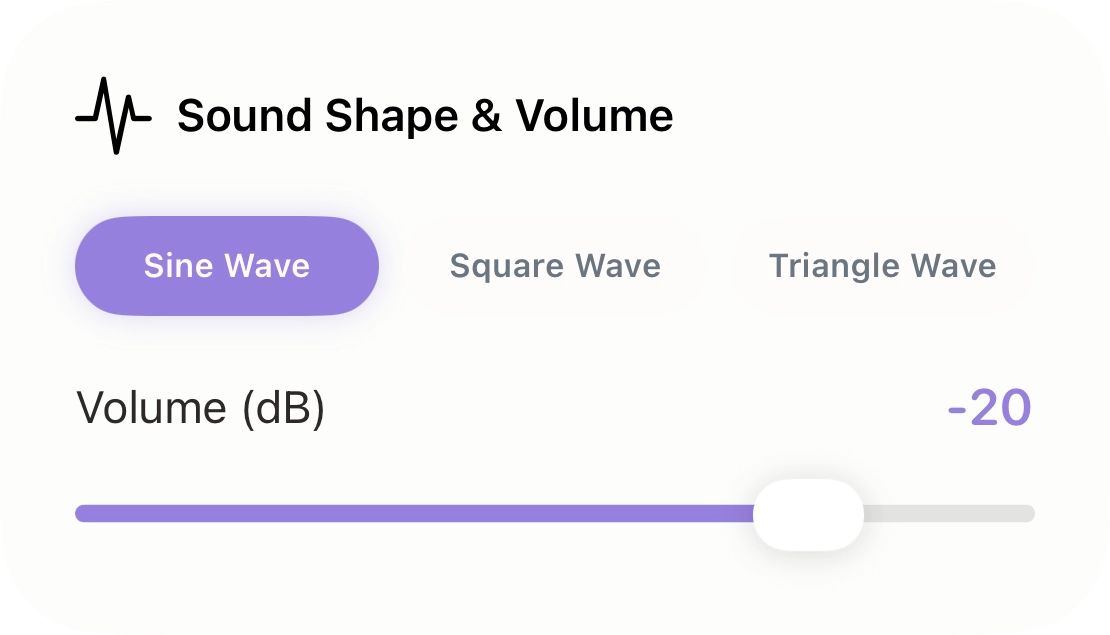
Waveform (Sound Shape)
Choose the "roundness" or "sharpness" of the sound.
- Sine Wave: The smoothest, softest waveform. Recommended for relaxation or extended listening sessions.
- Square Wave: A sharper, more mechanical sound with a clear edge. Good when you want a stronger stimulus.
- Triangle Wave: A middle ground between sine and square — moderate sharpness with a degree of softness.
Volume (dB)
Adjusts the overall volume. Even at lower levels, stimulation can be perceived, so set it to a comfortable level that doesn't fatigue your ears.
Tap the numeric display at the right end of the slider to open the keyboard and enter a value directly.

Spatial Audio
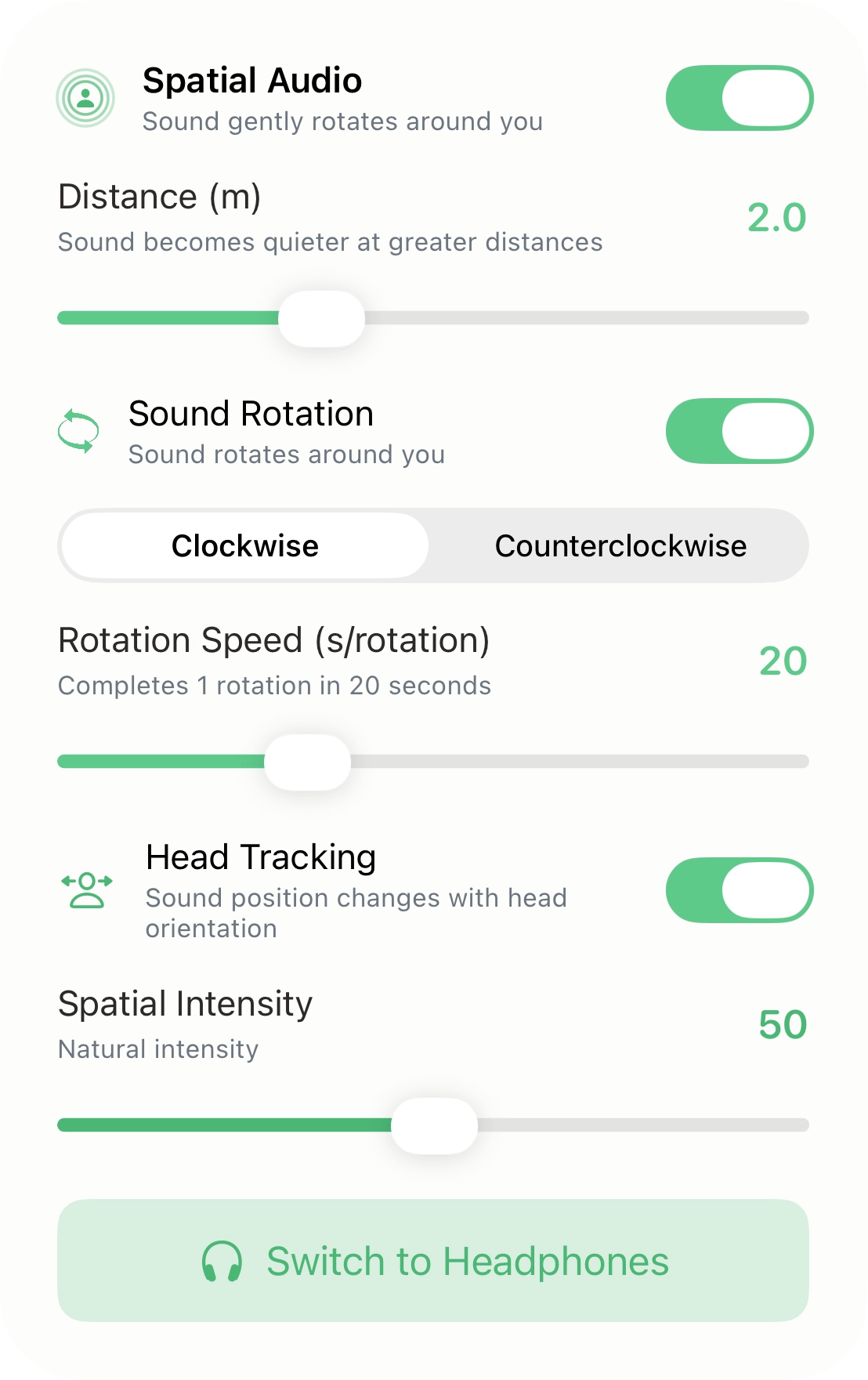
Adds three-dimensional depth to sound, creating the sensation that audio is playing in the real space around you.
Audio Source Distance (m)
Adjusts how far the sound source is from you. The farther it is, the quieter it becomes and the richer the spatial reverberation.
 Rotation Mode
When ON, the sound orbits around you in a circle. When OFF, you can fix the sound at a specific position (front, rear, left, right, or elevation).
Rotation Speed (sec/rotation)
Sets how many seconds it takes for the sound to complete one full orbit. A smaller number means faster rotation (minimum 2 sec/rotation); a larger number means slower (maximum 60 sec/rotation). The default is 20 seconds per rotation. You can also toggle between clockwise and counterclockwise.
 Head Tracking
When using supported earphones such as AirPods, the direction of the sound changes realistically as you turn your head.
Spatial Intensity
Controls the richness of the spatial effect — from a direct, dry sound to a lush, reverberant concert-hall experience. Adjust to your preference.
 Switch to Headphones
Tap this if the sound is coming from the speaker even though earphones or headphones are connected. This forces the audio output to headphones and reinitializes Spatial Audio.
Fixed Sound Position
Rotation Mode
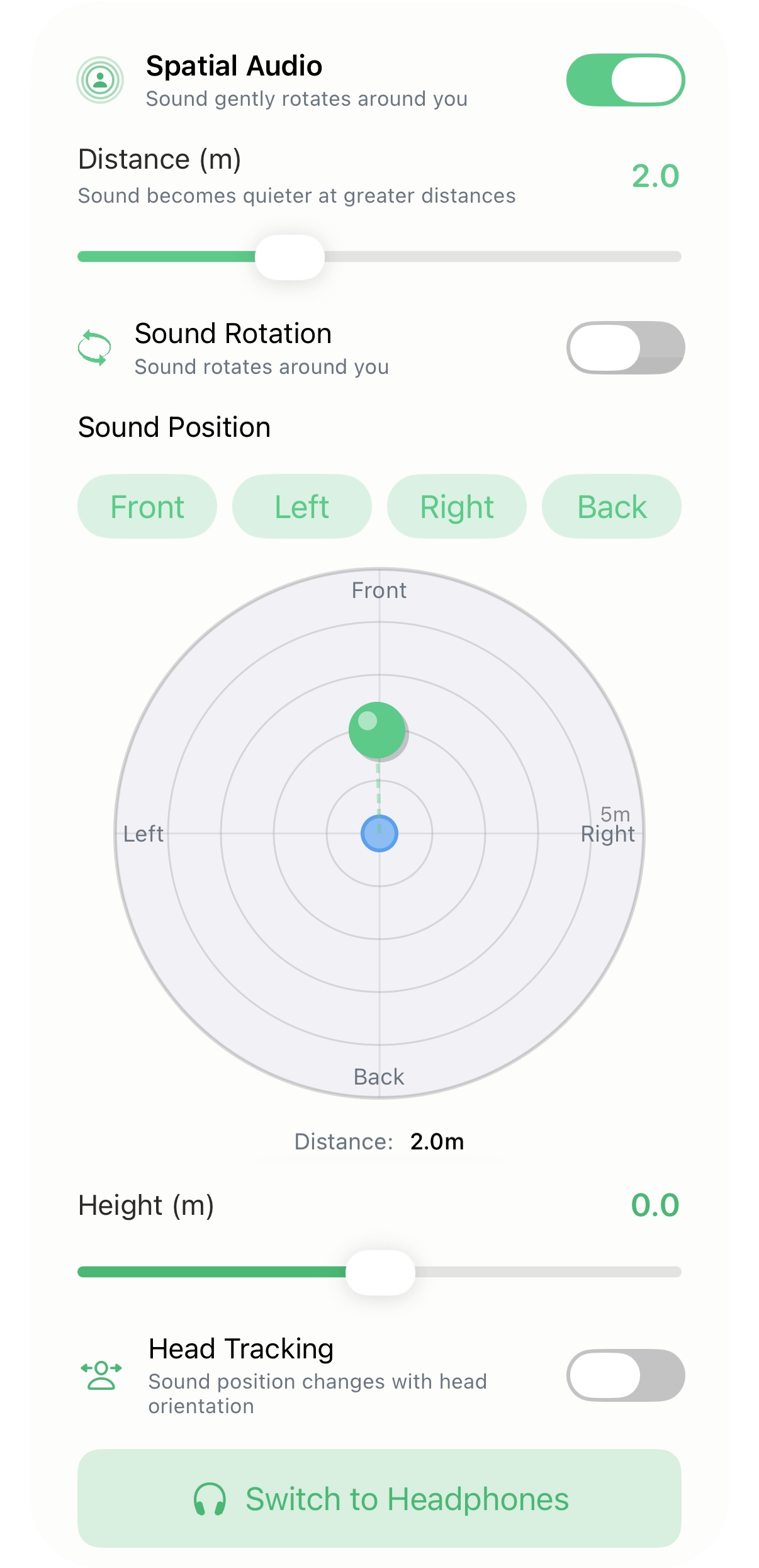
When Rotation Mode is turned OFF, you can fix the sound source at a specific direction in space. This mode is recommended for focused work or for those who find moving sound distracting.
Sound Position
Four preset buttons let you quickly place the sound source in common directions.
- Front: Places the sound 2 m directly in front of you.
- Left: Places the sound 2 m to your left.
- Right: Places the sound 2 m to your right.
- Rear: Places the sound 2 m directly behind you.
Below the buttons, a top-view pad lets you drag freely to fine-tune the position in the horizontal plane (left/right and front/back). The current position and distance (m) are displayed in real time.
Elevation (m)
Adjusts the height of the sound source from −2.0 m to +2.0 m. At 0 m, sound is at ear level. Positive values move the sound above you; negative values move it below.

Volume Fluctuation
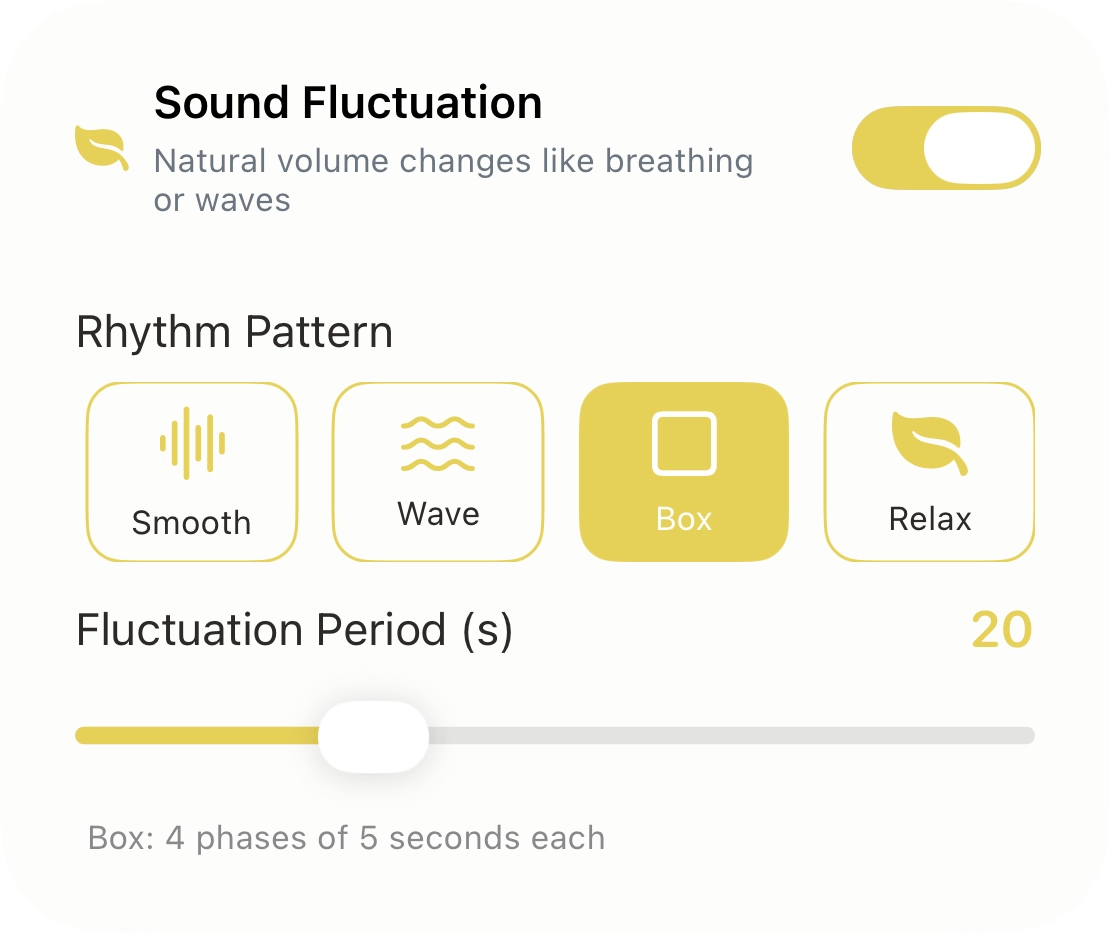
Adds a natural "breathing" rhythm to the otherwise constant volume, softening the mechanical character of the sound and reducing ear fatigue over long sessions.
Rhythm Pattern
Choose from a variety of patterns inspired by deep breathing or the rise and fall of ocean waves.
- Smooth: A continuous, gentle rise and fall in volume.
- Wave: An ebb-and-flow rhythm like ocean waves rolling in.
- Box: A box-breathing rhythm — equal durations of inhale, hold, exhale, hold.
- Relax: A calming rhythm that emphasizes the exhale to encourage relaxation.
- Sleep: A slow, deep breathing pattern ideal for drifting off to sleep.
Fluctuation Period (sec)
Sets how many seconds one complete rhythm cycle takes. Try matching it to your natural breathing pace for a deeper sense of relaxation.
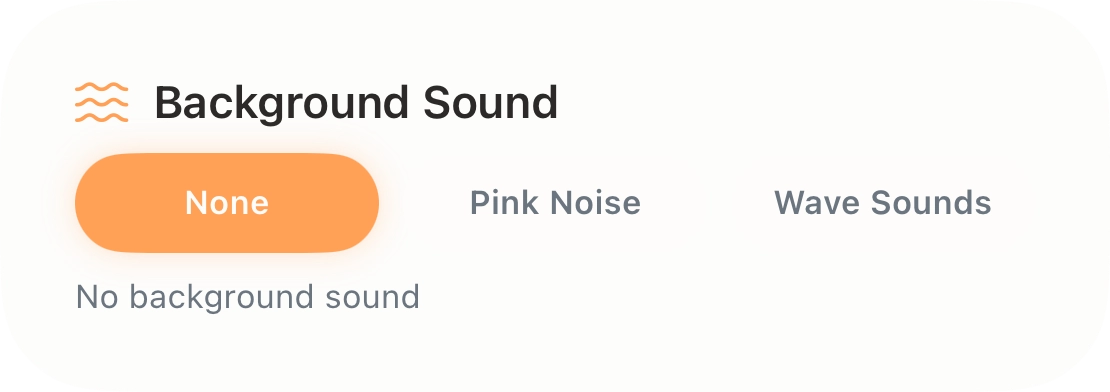

Background Sound
Play a soothing ambient sound alongside the 40Hz pulse.
Background Sound Type
- Pink Noise: A "shhhh" or white-noise-like sound that occurs naturally in nature. It has a masking effect that helps block out surrounding distractions — ideal for focused work.
- Ocean Waves: High-quality recordings of natural coastal waves. Perfect for deep relaxation and winding down before sleep.
Background Volume
Adjusts the volume of the background sound independently. Try balancing it so it gently wraps around the 40Hz tone without overpowering it.
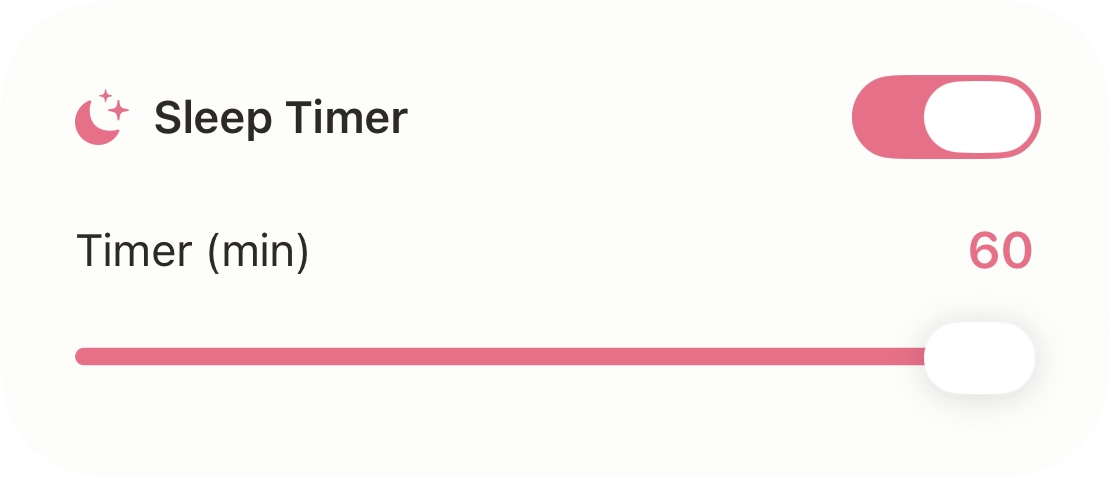

Sleep Timer
Automatically stops playback after a set amount of time.
Set anywhere from 1 to 60 minutes. When the time is up, the sound doesn't cut out abruptly — it fades out gradually for a natural stop. Great for bedtime listening or time-boxed focus sessions (e.g., the Pomodoro Technique).
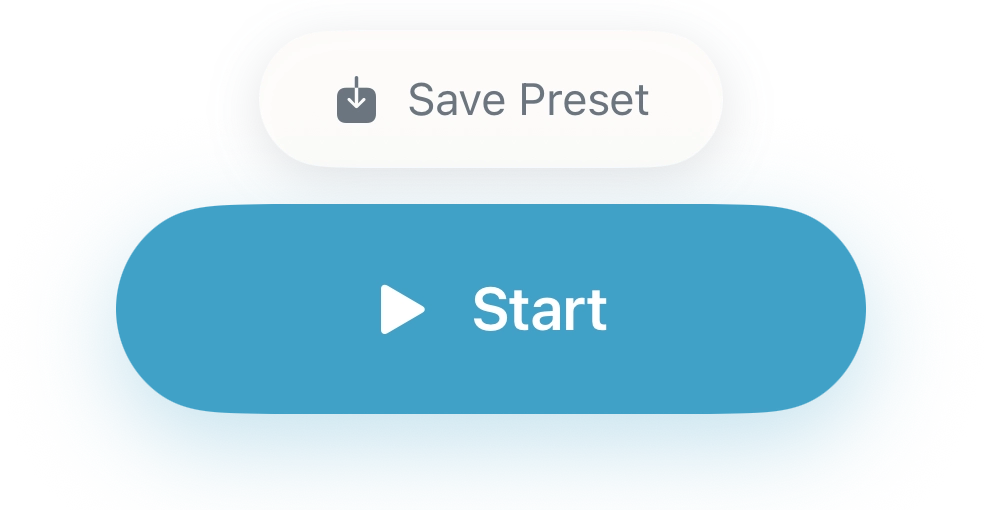
Playback & Save
 Start /
  Stop
Stop
Once you've configured your settings, tap Start button to begin playback. To stop, tap Stop button — the sound will fade out smoothly before it ends.
Save Preset
When you find settings you like, stop playback and tap Save Preset button to store the current configuration.
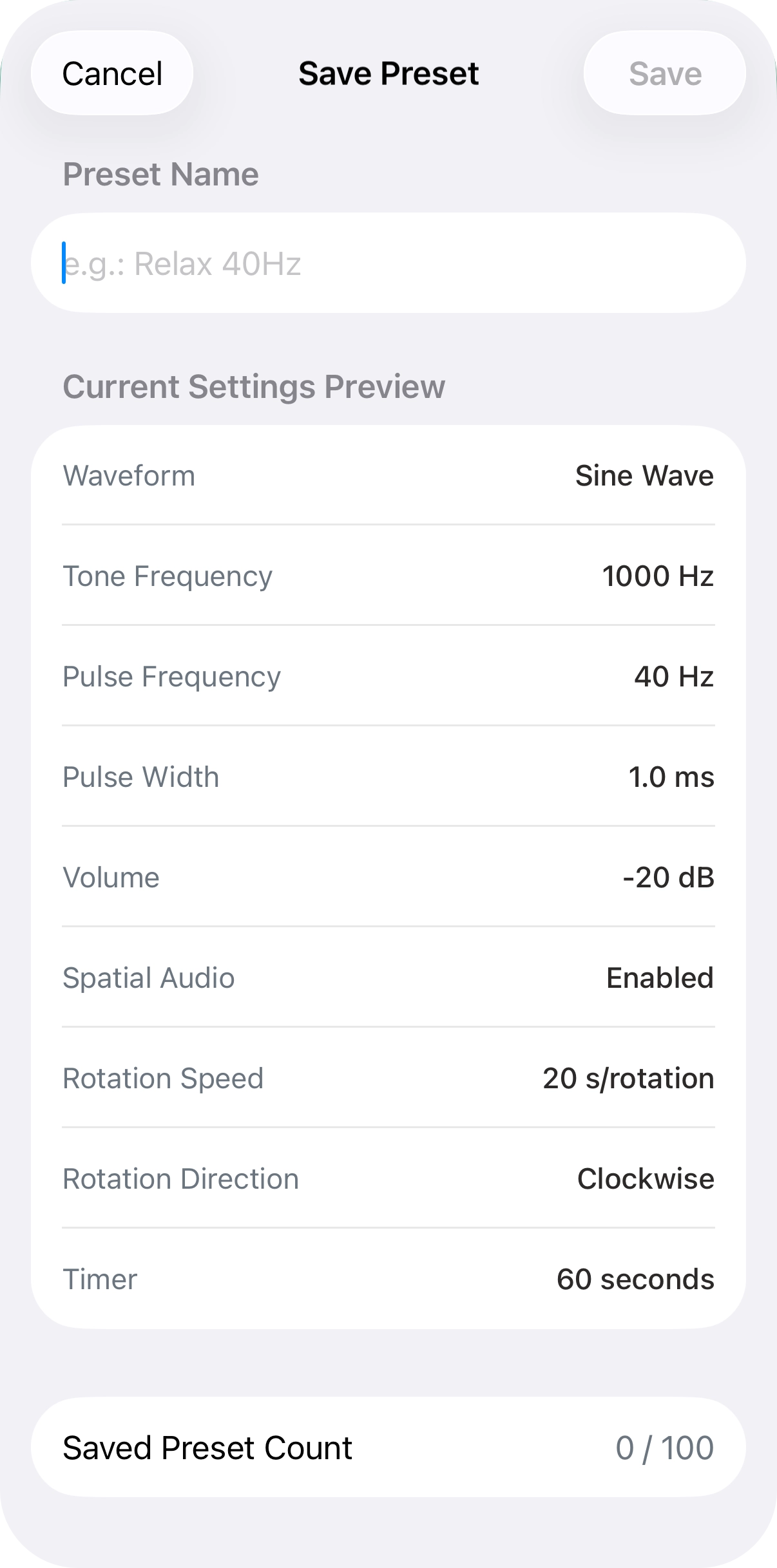

Save Preset
Tap Save Preset button to see a summary of your current settings before saving. You can review all the parameters that will be stored (waveform, volume, Spatial Audio settings, etc.).
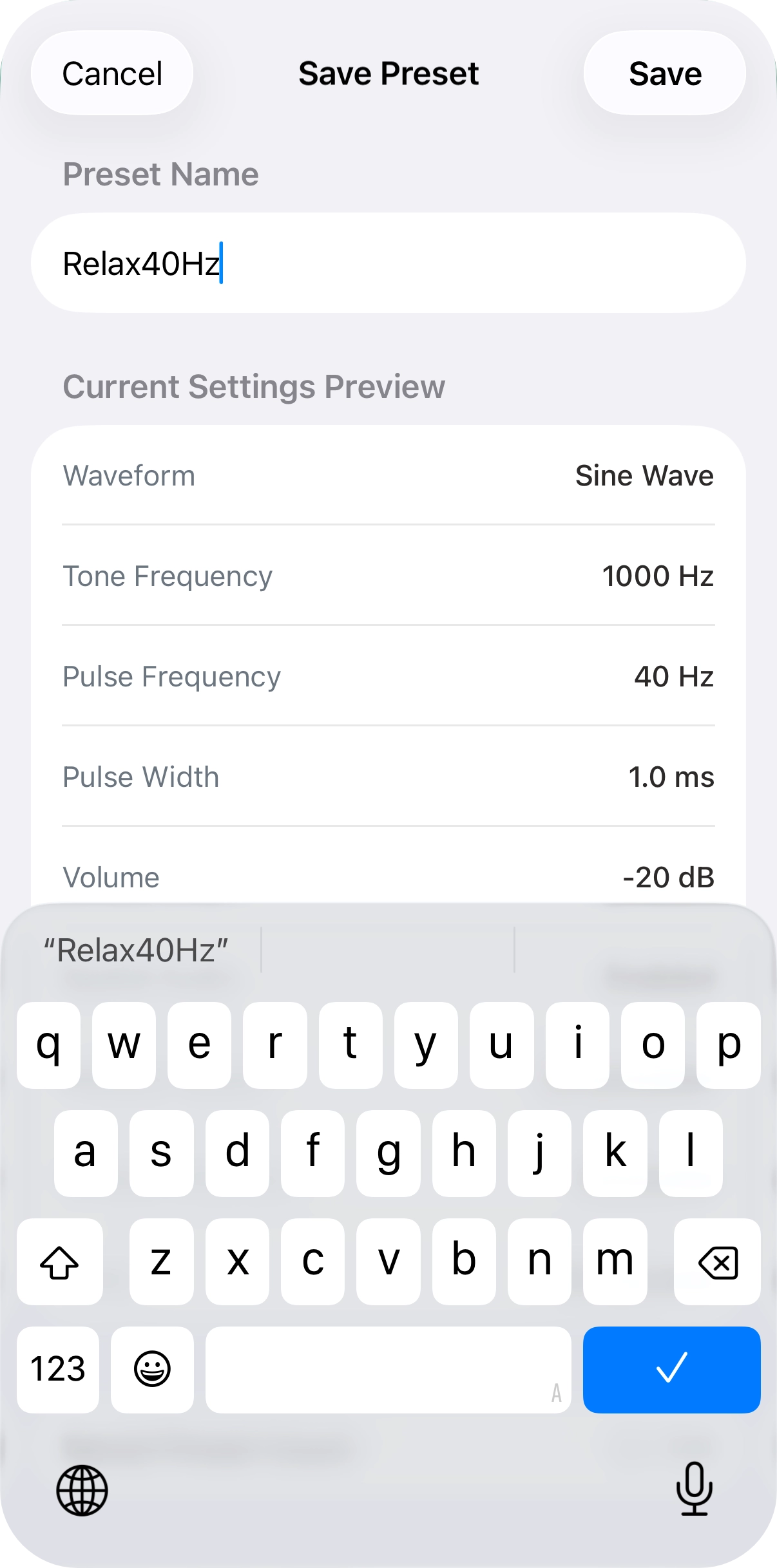
Name and Save
Give your preset a descriptive name — like "Focus Mode" or "Pre-sleep" — and save it. Presets sync via iCloud, so the same settings are available on all your other devices (including iPad).
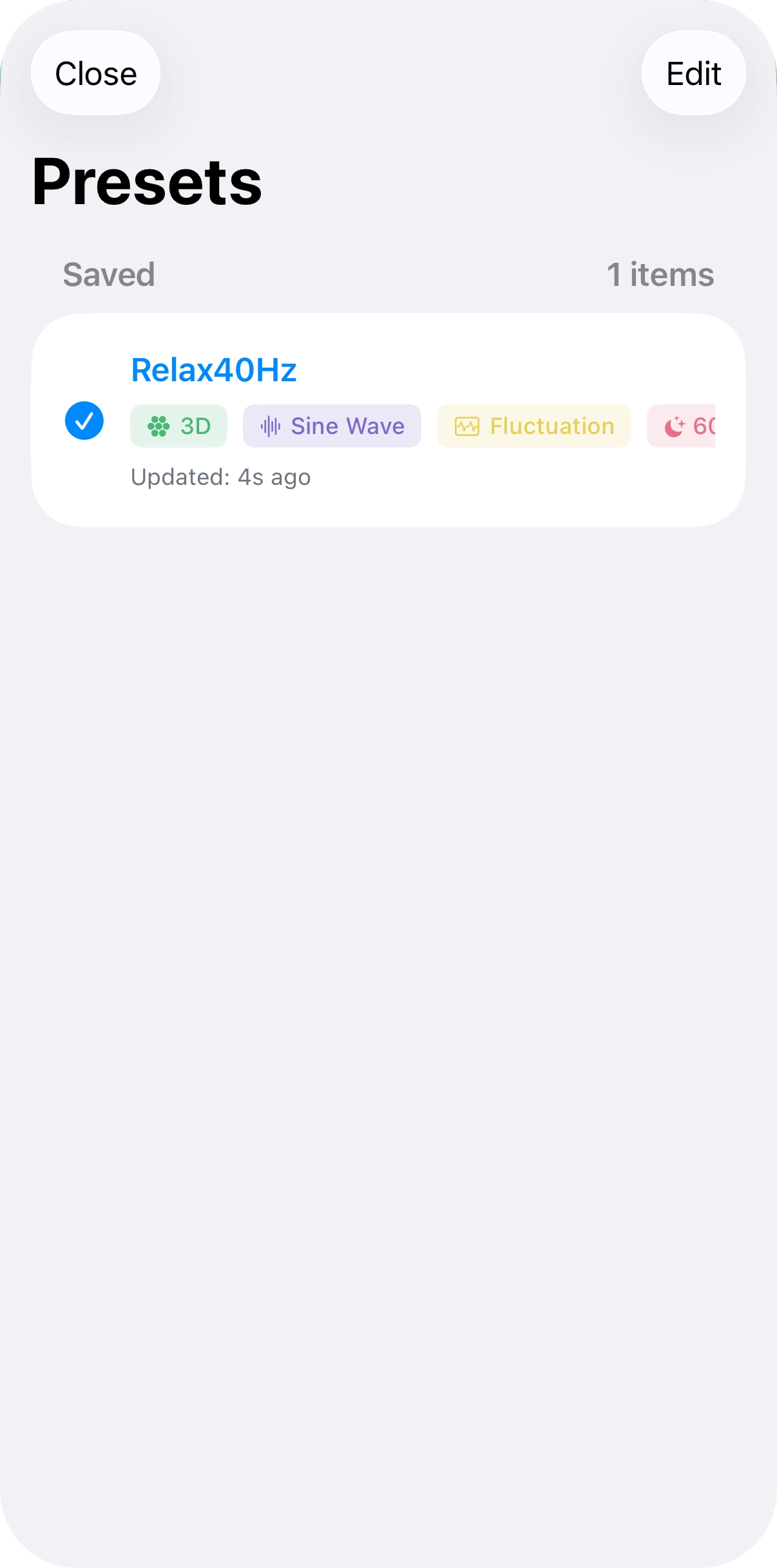

Managing Presets
Browse your saved presets. Tap any preset to instantly load those settings into the app. To delete a preset, swipe left on it.

Loading a Preset
Tap Open Preset at the top of the screen to load any saved configuration at any time. The name of the currently loaded preset is displayed beside the button.
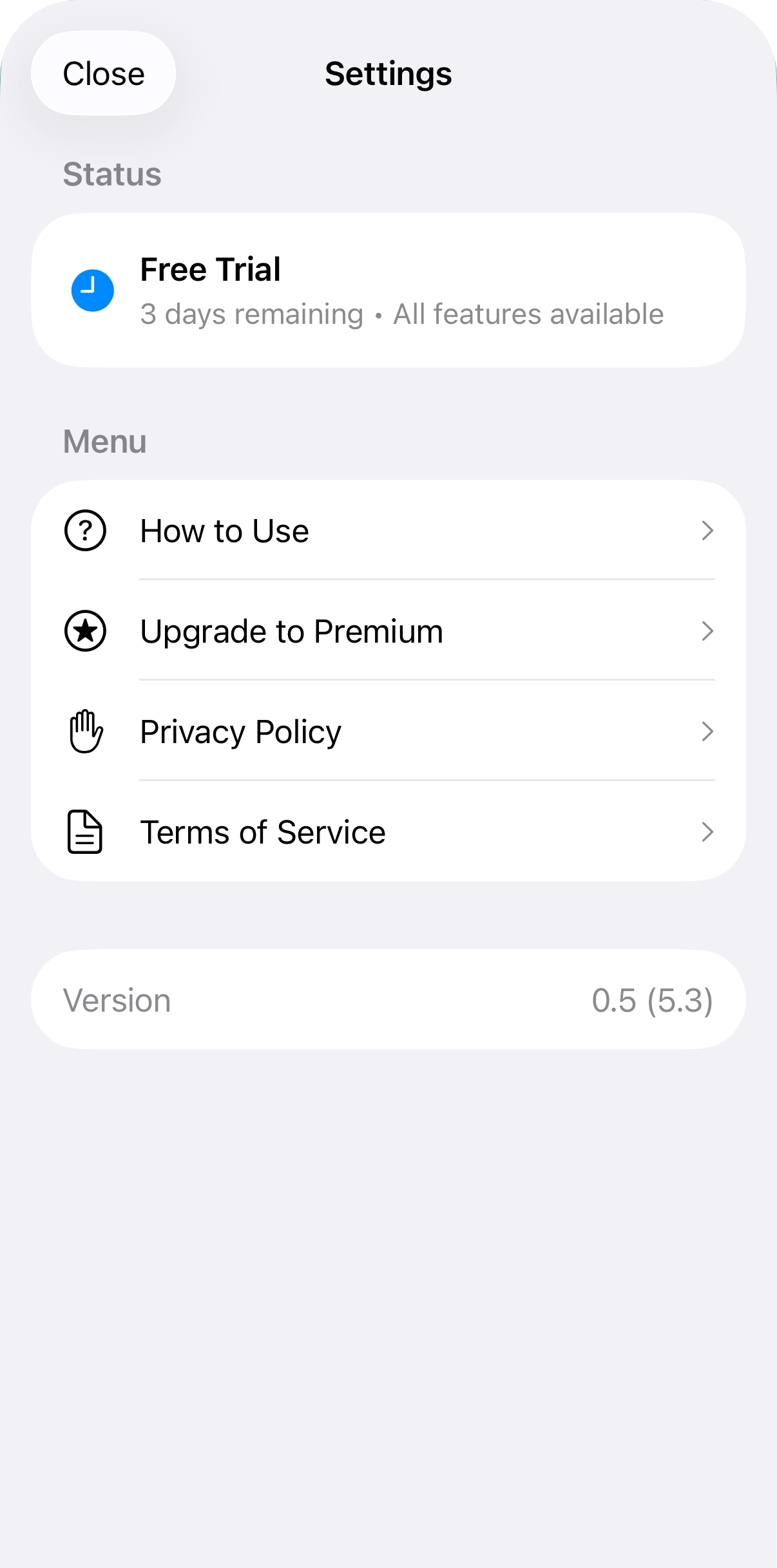

Settings
Access the settings screen via the gear icon at the top right.
Status Display
- Premium: Purchased. All features are available with no time limit.
- Free Trial: Shows the number of days remaining. All features are available during the trial period.
- Trial Ended: Playback is limited to 30 seconds per session. Purchase the Premium version to unlock full functionality.
Menu
- How to Use: Opens this guide page in the in-app browser.
- Purchase Premium: Takes you to the purchase screen. Grayed out if already purchased.
- Privacy Policy / Terms of Use: Opens each page in the in-app browser.
The app version number is displayed at the bottom of the screen.
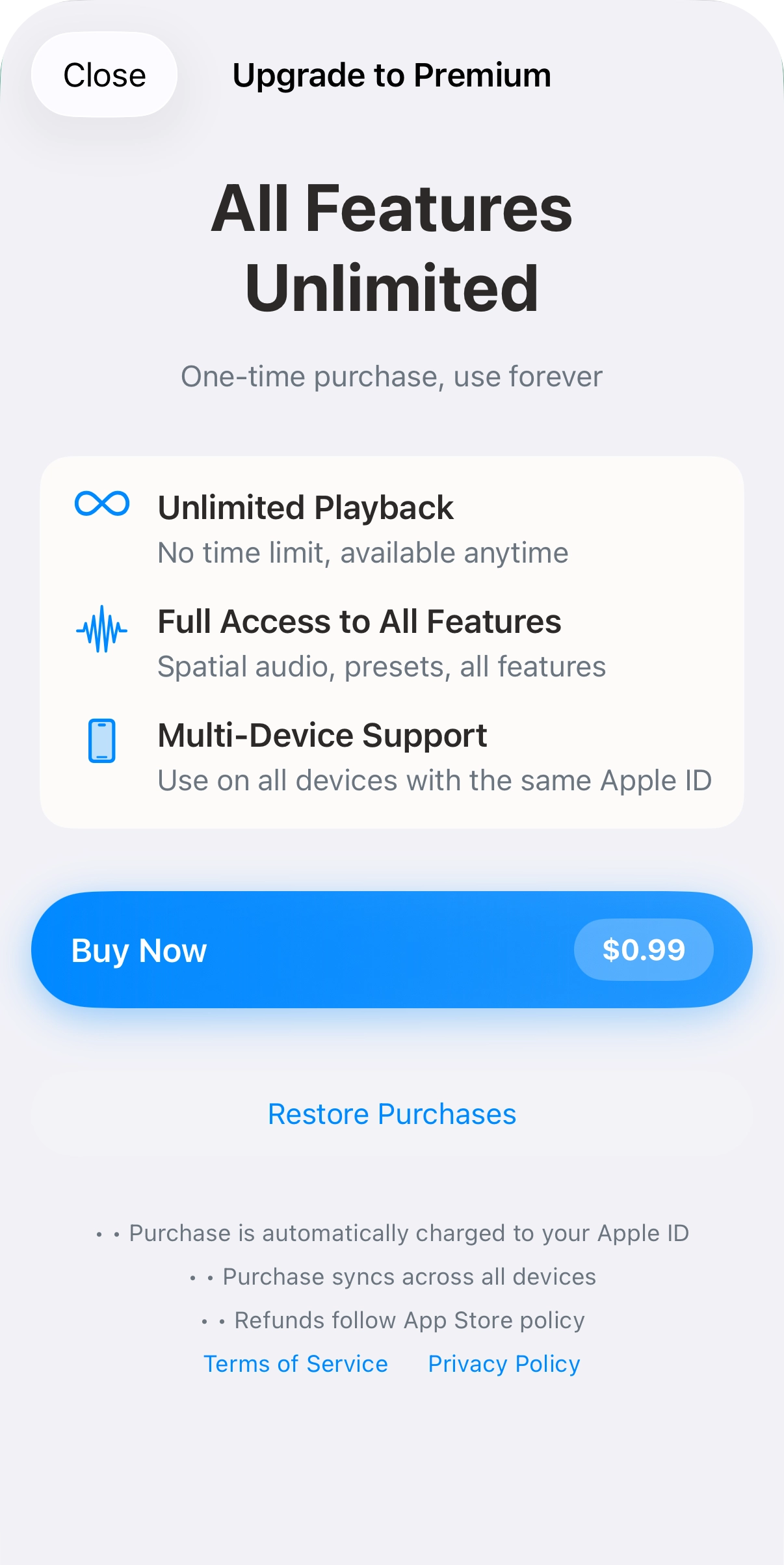

Purchase Premium
GLYMPHA is a one-time purchase — no subscriptions, no additional charges. After purchasing, every feature is yours to use indefinitely.
What's included
- Unlimited playback: Use the app whenever you want, for as long as you want.
- Full feature access: Spatial Audio, preset management, and all other features with no restrictions.
- Universal app: Use on all iPhones and iPads signed in with the same Apple ID.
Restore Purchases
If you've previously purchased the app — for example, after switching to a new device or reinstalling the app — tap Restore Purchases to reinstate your purchase at no extra charge.
Important Notes
- Payment is charged to your Apple ID.
- Your purchase is automatically available on all devices signed in with the same Apple ID.
- Refunds are subject to Apple's App Store refund policy.
Frequently Asked Questions
40Hz audio stimulation has been observed to affect brain activity in animal studies (mice, primates, etc.), but its effects in humans are still under active research.
Individual responses vary significantly. This app is an audio experience tool — not a medical device. It's intended for use as ambient sound during focused work or as a relaxation aid.
There is no prescribed listening duration. We recommend starting with around 10–15 minutes per day.
- Gradually extend as long as it feels comfortable.
- For longer sessions, taking a 10-minute break every hour is advisable.
- There's no need to push for extended listening sessions.
This app simply plays audio and poses no issues for most people. However, stop use immediately if you experience any of the following: headache, dizziness, discomfort, tinnitus, or nausea.
If you have a history of epilepsy or seizures, hearing problems, or are pregnant, please consult your doctor before use.
Yes. The 40Hz pulse tone and background sounds can be played through any ordinary earphones or headphones.
To experience 3D spatial audio and head tracking, use AirPods Pro (1st or 2nd generation), AirPods Max, or AirPods (3rd generation).
You can freely adjust the volume. Stimulation can still be perceived at lower volumes. Avoid extended listening at high volumes to protect your hearing.
You can use it any time. Based on user reports, these times are most common:
- Morning: a gentle stimulus to start the day
- Daytime: ambient sound for work or study
- Evening: relaxation before bed (timer recommended)
Never use it while driving. Do not use this app while operating a vehicle, cycling, using machinery, or walking near traffic — situations where you need to hear your surroundings. It may cause accidents.
The recommended age is 13 and over. If children use the app, it should be under parental supervision with volume appropriately managed. If you have concerns, consult a pediatrician.
Rotation Mode: Great for relaxation, meditation, brainstorming, or when you want to enjoy the spatial effect.
Fixed Mode: Better for focused work, reading, or anyone who finds moving sound distracting or disorienting.
Try both and choose whichever feels most comfortable to you.
GLYMPHA is designed to be used on its own. Simultaneous playback with other music apps is not recommended. A complex soundscape may obscure the stimulation effect.
GLYMPHA is a one-time purchase — no subscriptions, no additional charges. After purchasing, all features are available indefinitely, and future updates are free. If you've purchased it before, tap Restore Purchases to reinstate access at no cost.
Yes. GLYMPHA is a universal app that supports both iPhone and iPad. A single purchase covers all devices signed in with the same Apple ID, and your presets sync automatically via iCloud.
Pink Noise: Best for focused work, using the app in cafés or public spaces, or when you want to maintain the 40Hz stimulus while softening it with ambient sound.
Ocean Waves: Best for relaxation, meditation, winding down before sleep, or stress relief.
Benefits of turning it ON: Adds variety to the monotonous 40Hz pulse tone, naturally guides your breathing rhythm, and helps reduce fatigue during long sessions.
When OFF may suit you better: If you prefer a steady, consistent stimulus; if volume changes are distracting; or when you need a constant background sound level.
There is no limit. Create as many presets as you like — they all sync to every device via iCloud. We recommend creating separate presets for different scenarios: focus, relaxation, bedtime, and so on.